Ring in the New Year with New Deals!
Huge Deals on Sim Cards!
iPhone 15 128GB
(£39.00/month!)
Vodafone Sim 200GB (£8.50/month!)
Google Pixel 8 (£26.99/month!)
Vodafone Sim 120GB (£7.50/month!)
iPhone 15 Pro Max
128GB
(£29.99/month!)
iD Mobile Sim Cards
50GB
(£4.00/month!)
iPhone 15
256GB
(Yellow)
Vodafone Sim
Unlimited GB
(£14.00/month!)
iPhone 15 Pro Max (512GB Blue Titanium)
Samsung Galaxy S23 5G (256GB Black)
Samsung Galaxy A14 5G (64GB Black)
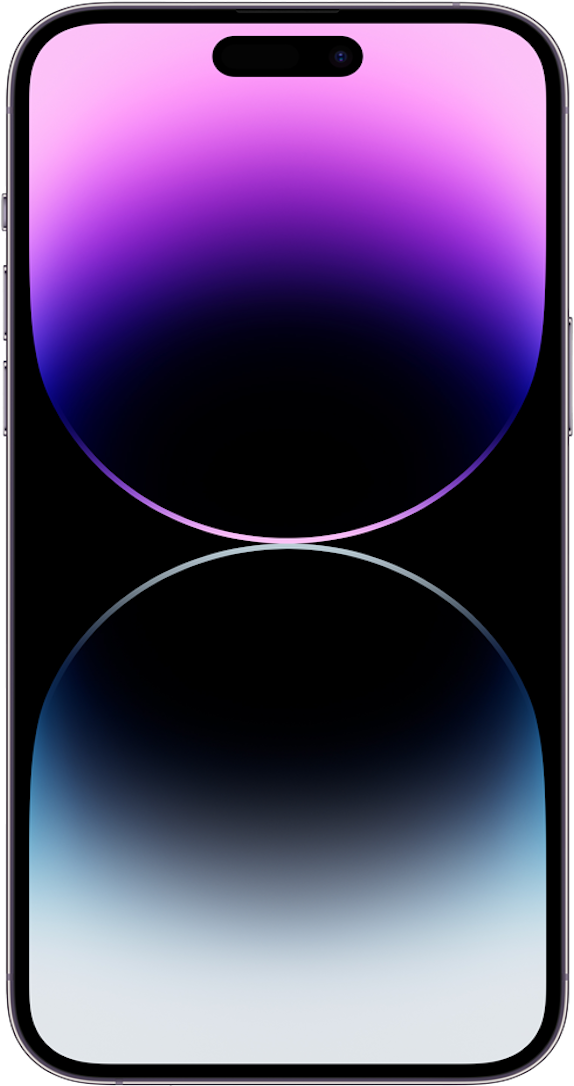
Apple iPhone 14 Pro (256GB Red)
Apple iPhone 15 Plus (128GB Green)
Samsung Galaxy S21 FE 5G (128GB Graphite)
Vodafone Sim Card (128GB Red)
Samsung Galaxy A13 (128GB Black)
iPhone 15 Pro (516GB Blue Titanium)
Samsung Galaxy S23 Ultra 5G (512GB)
iPhone 11 (128GB White)
Vodafone (120GB) Sim
iPhone 15 Plus (256GB Blue)
Google Pixel 8 Pro (128GB)
Galaxy ZFold5 (256GB Blue)
iPhone 15 Plus (256GB)
iPhone 14 Pro (256GB Black)
iPhone 14 Pro (256GB Gold)
iPhone 14 Pro (256GB)
Galaxy A04S (32GB Black)
iPhone 14 (256GB White)
iPhone 14 (128GB Yellow)
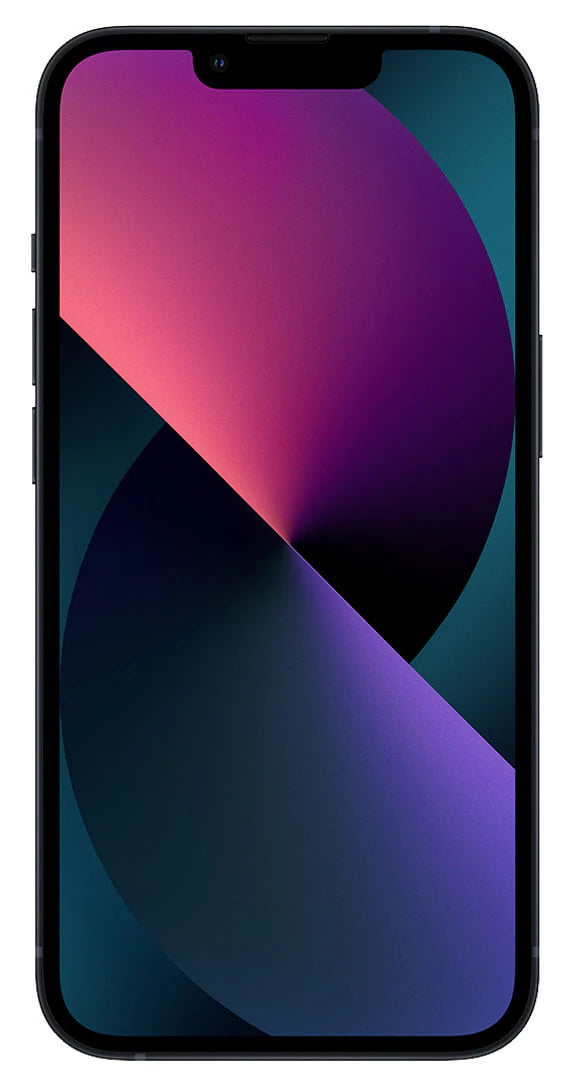
iPhone 13 (128GB Black)
iPhone 14 (256GB Red)
Galaxy S21FE (128GB)
Galaxy A54 5G (128GB Black)
iPhone 15 Pro (516GB)
 Skip to content